Bypass the fluff to get to the stuff.
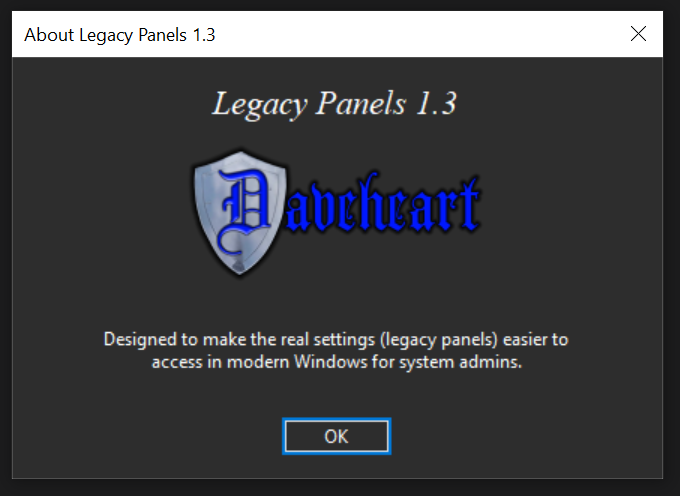
This tool was created with the intent of allowing system admins quicker access to the legacy panels found in control panel, and evolved from there to include direct access to other tools within Windows.
Legacy Panels can be configured to be useful at home, or in an organization by customizing the generated configuration file after first run.
In a work environment, the configuration file customized to your preference, and then deployed via group policy. When the application runs, it will validate the config and use the settings in the configuration file.
By default, the program will run in a locked mode, and users who attempt to access Legacy Panels, done with a right-click, will be presented with the locked menu.
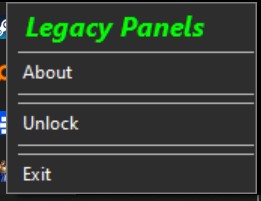
The “locked” menu on the left can be accessed by a right-click.
This can be modified to require CTRL + SHIFT + right click in the settings menu.
If a user selects “Unlock,” the program will attempt to elevate, displaying the standard windows UAC prompt, requiring an Administrator.
For Home use, the setting can be toggled to always run elevated, and Legacy Panels will just request elevation when it’s run.
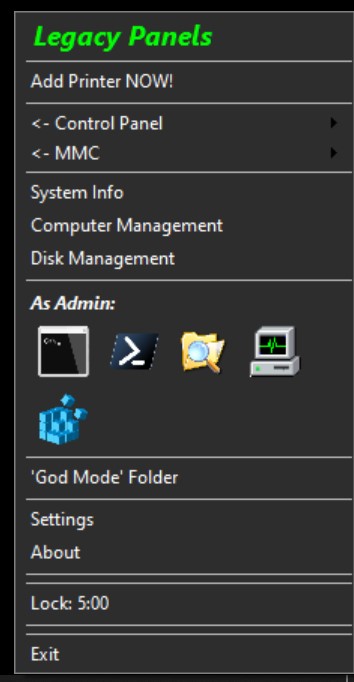
Once unlocked, the full menu appears.
Since the program is now elevated, everything launched from it is already elevated, saving system admins from having to type and retype credentials for every admin-level program or tool they need to run.
The Lock timer defaults to 5 minutes, but can be adjusted.
When the lock timer runs out, the program will automatically lock.
The timer can also set to reset every time the menu is interacted with.
Settings:
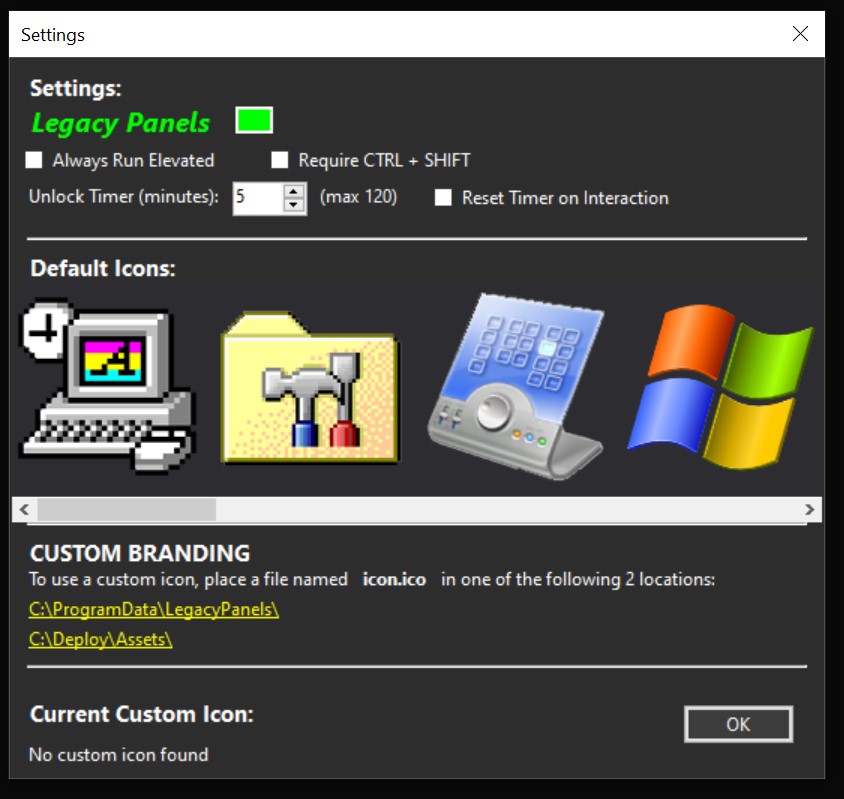
From the settings menu you can:
- Change the “Legacy Panels” display color
- Adjust options on how the program behaves
- Change the default app icon from one of 17 (currently) icons
You can also use a custom icon that represents your organization by following the directions in the “Custom Branding” section.
If the application finds “icon.ico” in either folder location listed, it will display that icon in the “Current Custom Icon:” section.
Pressing OK will save any settings you changed in the config file.
About LegacyPanels.exe
The program is a single self-contained .EXE file, written in C#, with no installer.
When first run, it creates a config file in the “\ProgramData\LegacyPanels” folder where all settings are stored, but this is set to change in a future version.
FALSE POSITIVE:
Windows Defender may likely flag LegacyPanels.exe as a false positive.
Windows Defender tends to be a trigger happy, but this is best for most windows users anyway as it is generally not a good idea to just download .exe files from the internet.
I submitted legacypanels.exe to Microsoft Security Intelligence shortly after I created the program. Their analysis reported no concerns about the file so I’m hoping this will eliminate any false positives from Windows Defender.
MalwareBytes had no issue with LegacyPanels.exe
You can also view the source code on my gitlab server by clicking below:
LegacyPanels Gitlab @daveheart.net
If you acquired LegacyPanels from any place OTHER than daveheart.net, then delete it.
All official releases of LegacyPanels will be from daveheart.net.